Site24x7 meets HaloITSM: Turn your monitoring alert into a HaloITSM ticket, automatically
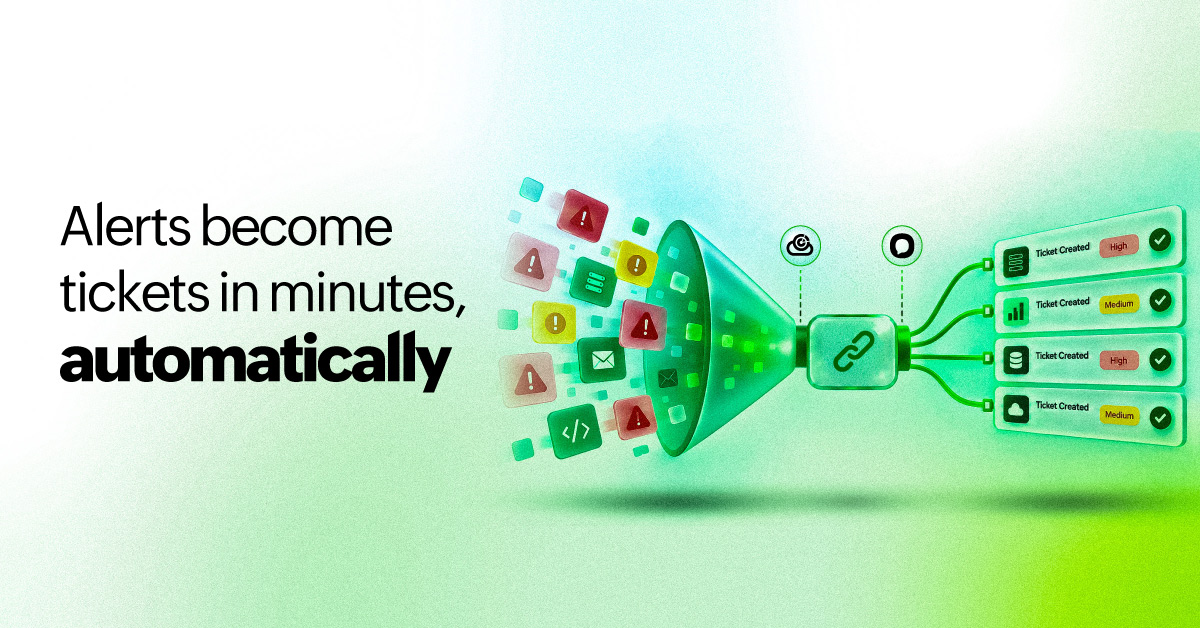
Every IT incident response starts the same way. Something breaks, an alert fires, and someone has to act on it. The faster that chain completes, the better your team looks on the SLA reports and the less your users feel it. If you're using HaloITSM, a service desk platform built for enterprise IT operations, that chain now has one fewer link.
Site24x7's integration with HaloITSM means the moment Site24x7 detects a problem with your website, server, or any IT resource it is tracking, a fully formed incident ticket appears in HaloITSM automatically. That's without anyone on your team having to spot the alert, interpret it, or create the ticket manually.
What happens when you connect Site24x7 and HaloITSM
The integration setup is straightforward, and so is the flow once its starts running.
Site24x7 observes your websites, servers, cloud infrastructure, and APIs around the clock. When any of these resources cross a health threshold, whether that is a status change to Down, Trouble, Critical, or Problem, Site24x7 sends the alert details to HaloITSM, which creates an incident ticket pre-populated with the monitor name, current status, and reason for the alert.
From there, the ticket stays up to date on its own. Every time Site24x7 detects a status change, it adds a comment to the same HaloITSM ticket, so the full incident timeline is captured automatically. No duplicate tickets pile up. No need to manually note "still ongoing at 10:45am." The ticket tells the full story as it unfolds.
Site24x7 and HaloITSM also support a closed-loop integration process (CLIP), which keeps both platforms in sync without any back-and-forth. Once HaloITSM creates a ticket, a summary of that ticket appears on the Site24x7 Events page. This summary is useful for when you want a quick status check without context-switching, while the actual incident workflow and resolution still lives in HaloITSM where your service desk team manages it.
It is a clean, complete loop from detection to resolution, with no manual steps required on either side.
Setting up the integration in Site24x7
The setup is straightforward. Complete the configuration in HaloITSM, generate your API credentials, then enter those into the Site24x7 integration form. From there, you pick which status changes should trigger a ticket and set the integration level: specific monitors, tags, monitor groups, or your entire account. The whole integration setup takes under 10 minutes.
The Site24x7 HaloITSM integration help documentation has the full step-by-step walkthrough.
 Figure 1: Site24x7 HaloITSM integration setup form
What your team sees in HaloITSM
On the HaloITSM side, each incoming alert creates a fully formed incident ticket. In Figure 2, the ticket captures the summary (such as "Zykler Monitor_3 is DOWN"), the category, ticket type, impact, urgency, client, site, team, the agent it is assigned to, and the exact timestamp of when the incident occurred. The monitor name, monitor type, and the URL being monitored are all carried across in the ticket details section as well.
 Figure 2: Site24x7 Events page showing auto-created HaloITSM ticket with populated fields.
The SLA clock starts the moment the ticket is created, which matches the moment Site24x7 detected the issue. The tool assigns responders by workflow. You arrive at the ticket already knowing what broke, which monitor flagged it, and when it happened. And because the integration links back through CLIP, you can view the HaloITSM ticket details directly from the Site24x7 Events page without leaving the platform.
Wondering how HaloITSM knows which asset an alert belongs to? It is simpler than you might think. Asset matching is built into the integration: HaloITSM matches assets against the MONITORNAME field from the incoming alert, and if the Asset field is added to your ticket type in HaloITSM, the linked asset appears automatically on every ticket. You can immediately see which asset or configuration item (CI) the alert corresponds to, without any manual lookup.
Why this matters more than you think
Here's what the HaloITSM integration means in practice:
- Speed: Fewer manual steps means faster response. And the added benefit is better accuracy.
- Accurate MTTR: When an incident ticket is created manually, the timestamp reflects when someone got around to creating it, not when the problem started. That gap quietly inflates mean time to repair (MTTR) figures and can make SLA reports look worse than the actual response was. With the Site24x7 and HaloITSM integration, the incident ticket timestamp and the alert timestamp match. What you measure is what actually happened.
- Audit trail: Site24x7 logs every status update as a comment on the ticket automatically. If you ever need to review how an incident was handled, including how long it took from detection to resolution, the data is already there.
- Incident context in one place: CLIP pulls the linked HaloITSM ticket details directly into the Site24x7 Events page, so you can view incident information without switching tools.
Ready to connect Site24x7 and HaloITSM?
If you are a Site24x7 customer, the HaloITSM integration form is available in Site24x7 under Third-Party Integrations. You will need an active HaloITSM account and the required API permissions before you begin.
If you're a HaloITSM customer evaluating a monitoring platform, Site24x7 monitors websites, servers, cloud infrastructure, APIs, and more. See how Site24x7 and HaloITSM integration works.
Frequently asked questions
1. What is alert-to-ticket automation, and why does it matter for IT teams?
Alert-to-ticket automation converts a monitoring alert into a service desk ticket without any manual step in between. It matters because that gap between detection and logging is where response time quietly inflates and incidents slip through.
2. How does monitoring and ITSM integration work in practice?
Monitoring tools and IT service management (ITSM) platforms connect through APIs. When your monitored resource crosses a threshold, the monitoring tool sends a payload to the ITSM platform, which creates or updates a ticket automatically. The result is a service desk that reflects your infrastructure's real status without anyone manually carrying the news across platforms.
3. What are the ITOM and ITSM integration best practices?
Set alert thresholds deliberately so only genuinely actionable status changes trigger tickets, and configure an alternate notification channel and user alert group so integration failures are caught quickly. Map your monitors to the right integration level (e.g., specific monitors, tags, monitor groups, or all monitors) and revisit these settings as your infrastructure grows.
4. How do I automatically create a service desk ticket from a Site24x7 monitoring alert?
In Site24x7, go to Admin > Third-Party Integrations, and open the HaloITSM form. Enter your Instance URL, choose your authentication method (Credential Profile or OAuth), select which status changes (Down, Trouble, Critical, or Problem) should trigger tickets, and set the integration level to the monitors you want covered.
5. How does asset matching work in the Site24x7 and HaloITSM integration?
HaloITSM matches assets against the MONITORNAME field sent in the alert payload from Site24x7. To activate the link, add the Asset field to your ticket type in HaloITSM, and the matched asset or configuration item will appear automatically on every alert ticket that is created.
6. How does the Site24x7 and HaloITSM integration reduce MTTR?
The integration creates a ticket the instant a monitor changes state, so the SLA clock starts at the right time and the ticket arrives pre-populated with the monitor name, status, reason for the alert, and the exact time the incident occurred. Responders start informed rather than spending the first few minutes gathering context, which directly shortens mean time to repair (MTTR).
7. What makes HaloITSM a good fit for teams using Site24x7 for infrastructure monitoring?
HaloITSM supports both OAuth and credential-based authentication, so incidents detected by Site24x7 flow directly into structured, fully populated tickets without any custom development. The integration also supports notification templates, dynamic message titles, and tag-based filtering, giving teams the flexibility to tailor alert content to their existing processes.
Comments (0)