
Third-Party Integrations
Site24x7 provides integrations with various third-party services. By integrating your account with these third-party platforms, you can receive alert notifications through your preferred channels, collaborate with your team, automate tasks, and do much more. This can help you stay updated and manage your resources efficiently.
Learn more about the different types of supported third-party services and how to integrate your Site24x7 account with them.
AI Integrations (Zia)


ITSM




Plus Cloud


Plus On-Prem

Plus MSP
Plus MSP Cloud





Collaboration


Workflow


Analytics
Compliance

Security

Enrich notification payloads with custom and incident parameters
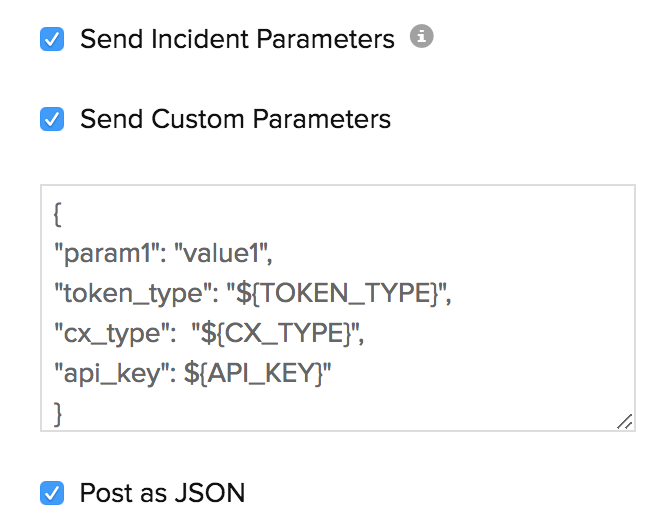
Custom parameters and incident parameters let you control the information included in notifications sent from Site24x7 to third-party platforms. Use custom parameters to add static metadata, and incident parameters to include dynamic alert details generated during an incident.
Custom parameters
Custom parameters allow you to define your own key-value pairs that are included in the notification payload. Use them to include static metadata such as environment details, routing information, team names, or organization-specific values required by the receiving platform.
Common use cases
- Identify the source environment (Production, Staging, Development, etc.).
- Route alerts to specific teams or escalation groups.
- Include organization-specific metadata required by the receiving platform.
- Support custom workflows and automation rules.
Incident parameters
Incident parameters are predefined placeholders that Site24x7 automatically replaces with real-time incident details when sending notifications. These parameters provide contextual information about the monitor and the alert, enabling the receiving platform to process incidents more effectively.
Learn more about the commonly used incident parameters.
When an incident occurs, Site24x7 automatically replaces the selected incident parameters with the corresponding values before sending the notification.
How it benefits you
- Give the receiving application all the information it needs to process alerts effectively.
- Reduce manual data entry in third-party tools by automatically including key incident context.
- Leverage customized workflows tailored to your team's processes.
Steps
- Navigate to Admin > Third-Party Integrations and create a new integration or edit an existing one.
- Configure the Message Title field using custom parameters and incident parameters ($ tags).
- Enable Send Incident Parameters and Send Custom Parameters by selecting the corresponding check boxes.
- Select the parameters to include in the notification payload.
- Click Save or Save and Test.
When Site24x7 generates an alert, the configured custom parameters and incident details are automatically added to the notification payload and sent to the integrated third-party platform.
Learn more about incident and custom parameters.
Review configuration changes before saving
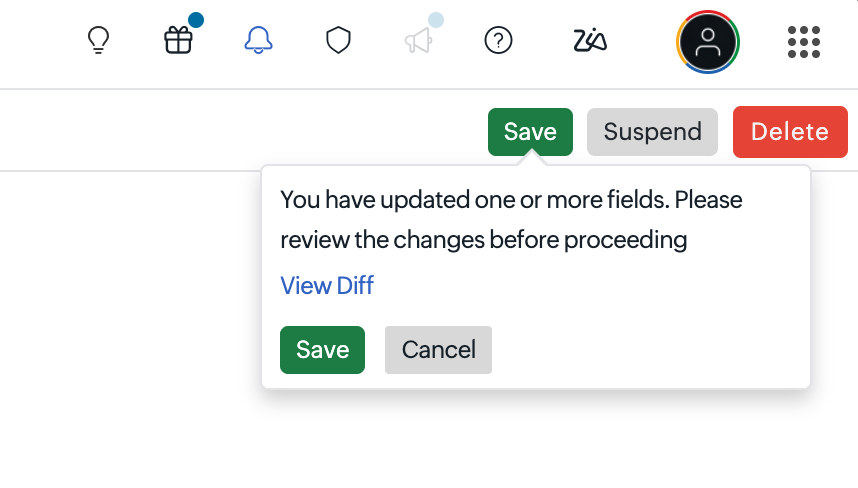
To help prevent unintended configuration updates, Site24x7 displays a review page whenever you click Save or Save and Test after modifying an integration. This allows you to verify every change before it is applied.
How it works
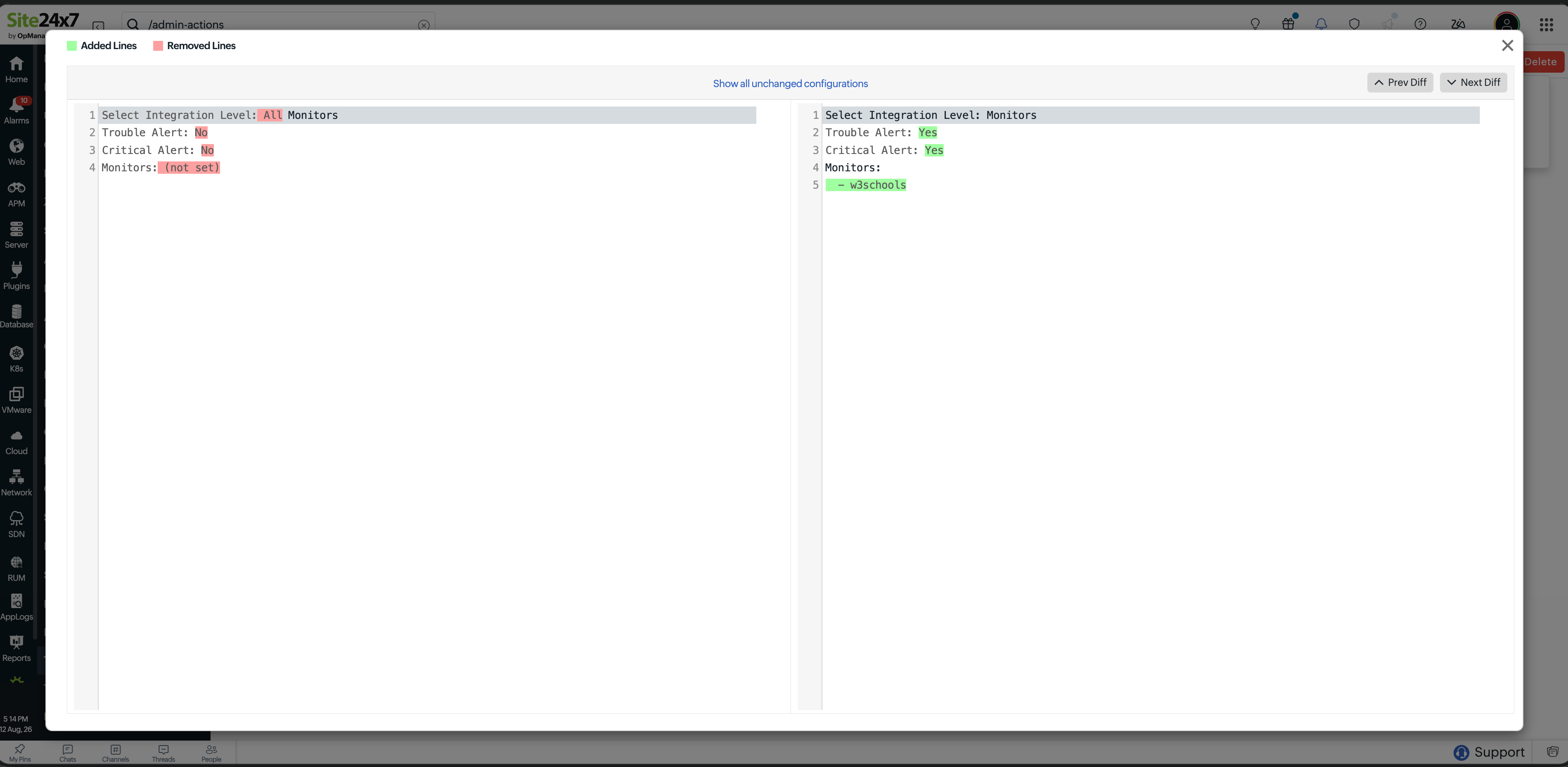
The review page highlights all modified fields so you can quickly identify what has changed. Click View Diff to compare the previous configuration with the updated values side by side before saving.
How it benefits you
- Review every modified field before saving.
- Compare previous and updated values side by side.
- Reduce accidental configuration changes in production.
Steps
- Navigate to Admin > Third-Party Integrations and open an existing integration.
- Make the required changes.
- Click Save or Save and Test.
- In the confirmation pop-up, click View Diff to compare the changes.
- Verify the updates and click Save to apply the configuration.
Synchronize monitor relationships with third-party platforms (Relationship mapping)
Relationship mapping synchronizes the relationships between your monitored resources and supported third-party platforms such as ServiceNow and ServiceDesk Plus CMDB. It preserves service topology, dependencies, parent-child hierarchies, and network relationships so external platforms maintain an accurate representation of your infrastructure.
Supported relationship types
The following types of relationships are synced to integrated platforms:
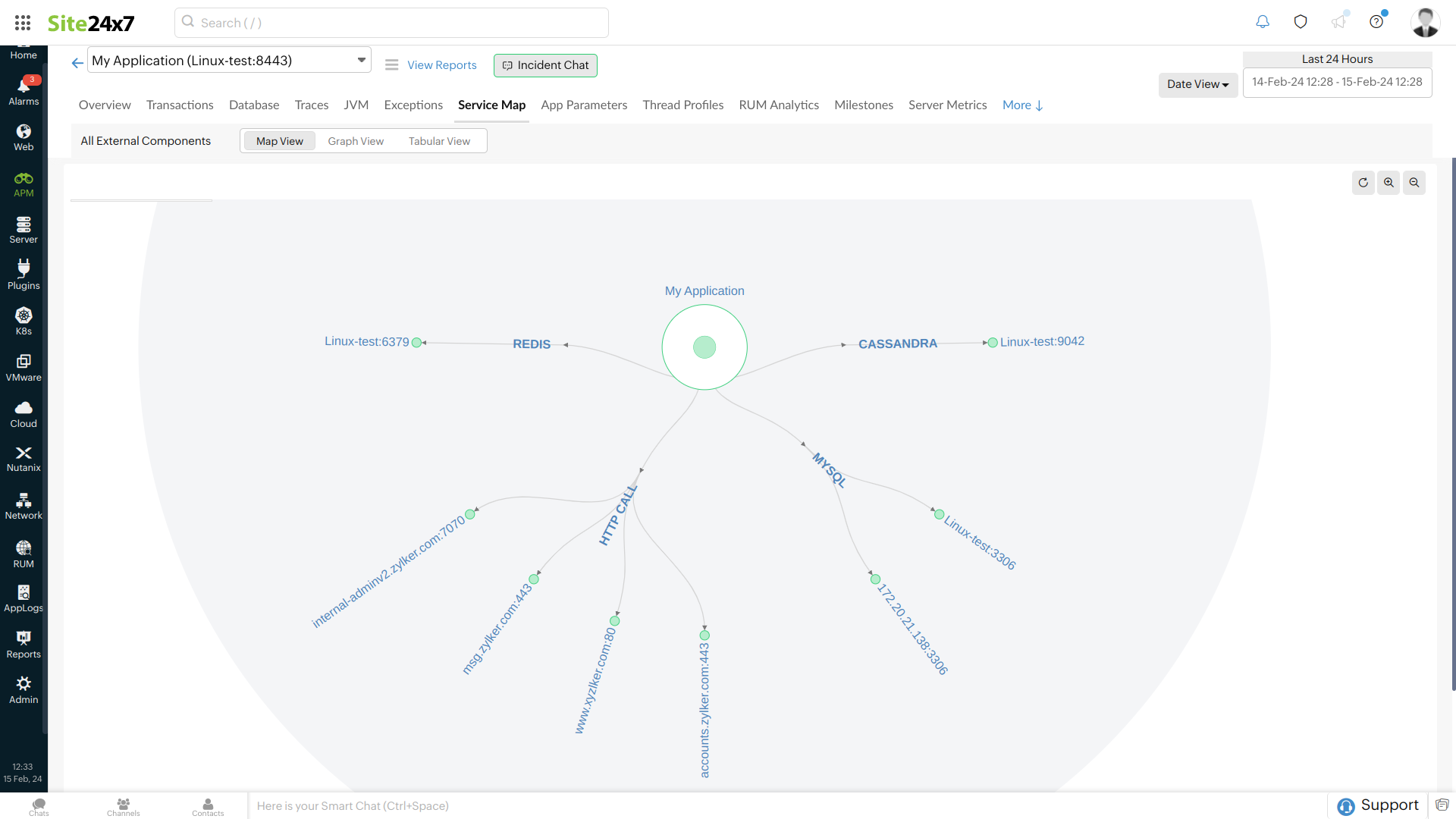
- Service Maps:
Synchronizes applications, application servers, and their connected components as service maps in the third-party platform.
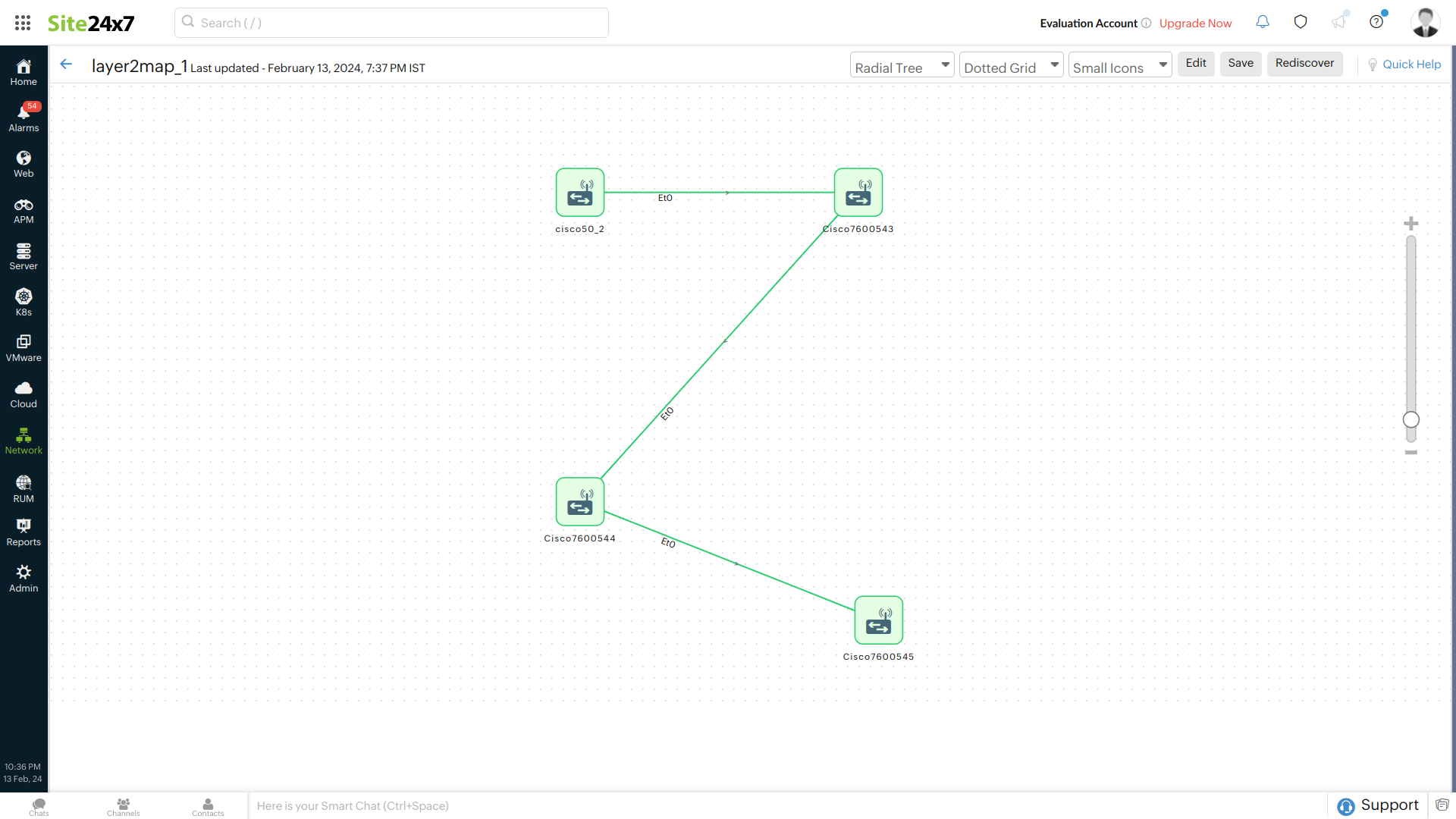
- Layer 2 Maps:
Synchronizes Layer 2 relationships between network devices while preserving network topology and cross-links.
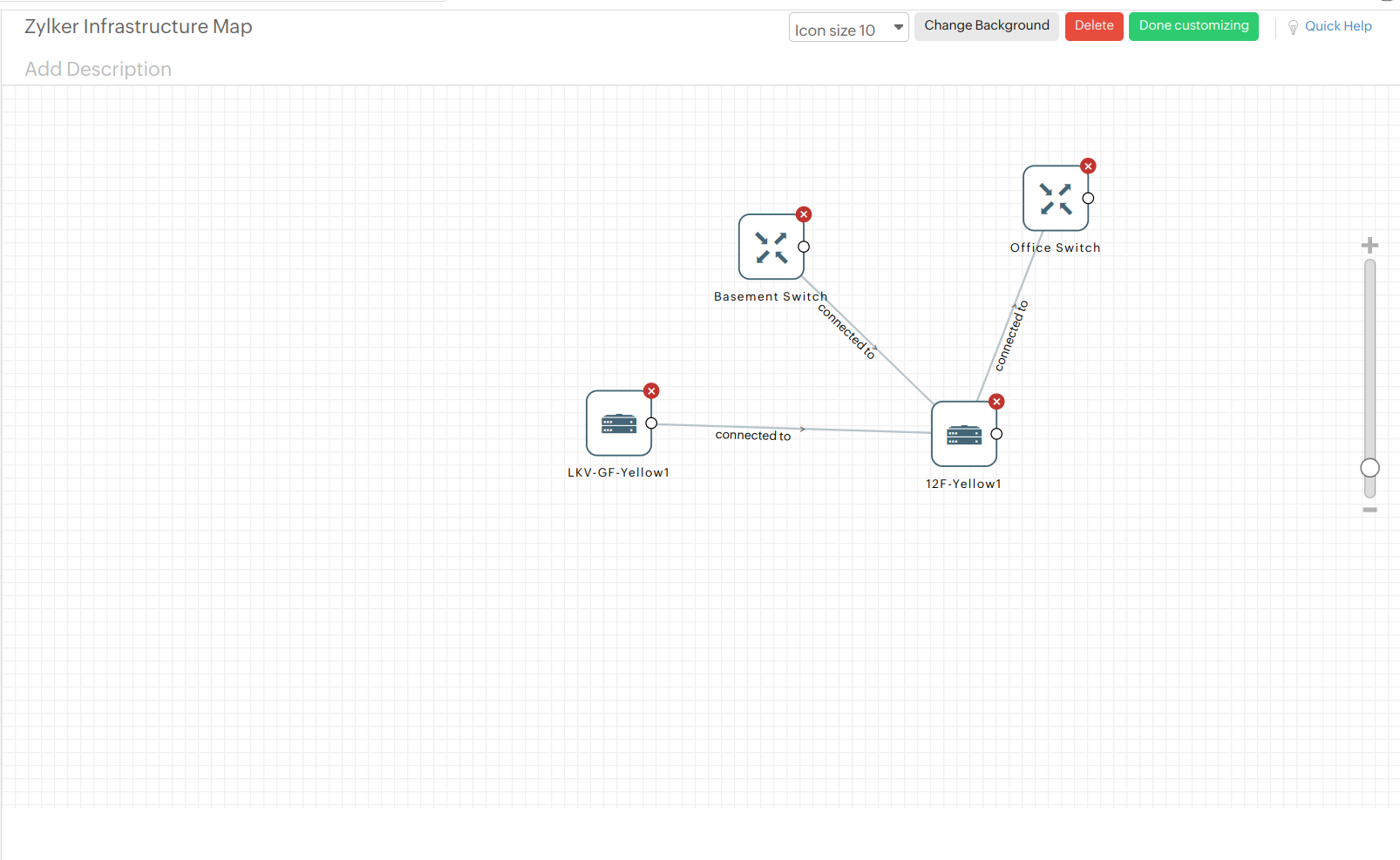
- Infrastructure Maps:
Synchronizes user-defined relationships between monitored resources.
- Depended-on Monitors:
Synchronizes monitor dependency relationships so upstream and downstream dependencies are visible in the third-party platform. - Parent-Child Relationships:
Synchronizes parent-child monitor relationships. For example, an IIS Server monitor configured as a child of a Server monitor is synchronized with its parent-child relationship preserved.
How it benefits you
- Maintain an accurate view of your IT infrastructure in supported third-party platforms.
- Eliminate the need to manually recreate or maintain topology information.
- Automatically synchronize additions, updates, and deletions in resources every 10 minutes.
Steps
- Navigate to Admin > Third-Party Integrations and open or create an integration that supports relationship mapping (e.g., ServiceNow or ServiceDesk Plus CMDB).
- Scroll to the CMDB Integration Settings section within the integration form.
- Set CMDB Integration to Yes.
- Select the integration level—choose All Monitor Types or Select Monitor Types.
- Upload a JSON mapper file that maps the third-party platform's table and fields to Site24x7's configuration item (CI) fields. Download the sample JSON mapper file as a starting point and customize as needed.
- Click Save and Test to test and validate the integration, or Save to apply the configuration.
Relationship data begins synchronizing automatically after the integration is saved.
Relationship mapping is supported only for monitor types that include inventory details. You must have sufficient privileges to manage CI types and CI data in the connected third-party platform.